Platformer
These steps are available at shorturl.at/W1Ohk.
Step 1: Remix the starter project
Open the starter project at shorturl.at/LM268 and click Remix to make your own copy.
The starter project comes with a background image and a sprite which is a knight character. You could use the knight as the character in your game or add a different sprite.
Step 2: Add a variable called jump speed
Click Make a Variable and call it jump speed. Untick the variable so that it doesn’t appear on the screen.
Now set the jump speed to 0 when the game starts.
when green flag clicked
set [jump speed v] to (0)
Step 3: Make the character fall to the bottom of the screen with gravity
You will create a repeat until loop which ends when the character reaches the door at the top-right of the screen.
when green flag clicked
set [jump speed v] to (0)
go to x: (0) y: (-100)
repeat until <touching color (#78cdee)?>
    change y by (jump speed)
    change [jump speed v] by (-1)
end
- How can you make gravity lower, like on the moon? Or higher, like on Jupiter?
Step 4: Make the character stop falling when they hit the ground
You might have noticed that the character just keeps falling through the floor.
Inside the repeat until loop, add this code to make them stop when they get to the floor.
if <<touching color (#000000)?> and <(jump speed) < (0)>> then
    repeat until <not <touching color (#000000)?>>
        change y by (1)
    end
    set [jump speed v] to (0)
end
Step 5: Add a block to fix the weird animation!
Now the character doesn’t fall through the floor, but they gradually float up which looks a bit weird! To fix this, we put this code inside a custom block called put on ground.
⚠️ Very important: make sure you select Run without screen refresh when you create the custom block. This will mean that the character moves straight up without the weird animation.
define put on ground
repeat until <not <touching color (#000000)?>>
    change y by (1)
end
set [jump speed v] to (0)

if <<touching color (#000000)?> and <(jump speed) < (0)>> then
    put on ground
end
Note: The colour you use here will be the colour of the platforms you add in Step 10. It is important that you don’t use a colour which is already in the background image. Black should work well.
Step 6: Add a variable called on ground?
We are going to add a variable called on ground?. This is going to be set to 1 if the character is on the ground or 0 if the character is jumping or falling. Remember to untick the variable so that it doesn’t appear on the screen.
After you set the jump speed at the start of the script, you also need to set on ground? like this:
set [on ground? v] to (0)
And we need to update our custom block to set on ground? to 1, like this:
define put on ground
repeat until <not <touching color (#000000)?>>
    change y by (1)
end
set [jump speed v] to (0)
set [on ground? v] to (1)
Step 7: Make the character jump
To make the character jump, we need to add this code inside the repeat until loop:
if <<key (up arrow v) pressed?> and <(on ground?) = (1)>> then
    set [on ground? v] to (0)
    set [jump speed v] to (12)
end
This means that the character will only jump if it is on the ground. Try pressing the up arrow to see the character jumping.
- Can you make the character jump higher or lower?
- Can you play a sound effect when the character jumps?
Step 8: Add a variable called run speed
We also want the character to run left and right. To do this, we first need a new variable called run speed. As before, untick the variable so that it doesn’t show on the screen.
We want to set run speed to 0 when the game starts:
set [run speed v] to (0)
Step 9: Make the character run left and right
Now add this code inside the repeat until loop:
if <key (left arrow v) pressed?> then
    change [run speed v] by (-2)
end
if <key (right arrow v) pressed?> then
    change [run speed v] by (2)
end
And we need to add an extra line right at the top of the repeat until loop so that the character runs according to the run speed:
change x by (run speed)
- Can you make the character look to the left or right when they are running?
Step 10: Make the character slow down
Right now, the character slides left and right like they are on an ice rink! We need to add some friction to slow the character down.
Add this code right at the end of the repeat until loop:
set [run speed v] to ((run speed) * (0.7))
- How can you make the friction stronger and weaker?
Step 11: Add some platforms
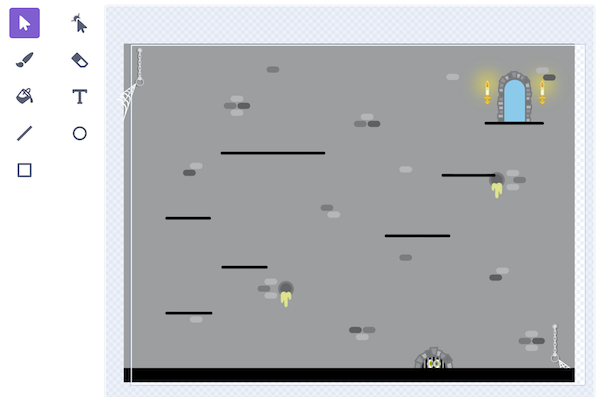
Finally, we need to add some platforms to the backdrop so that the character can reach the door to complete the game. You can add them anywhere you want, but they must match the colour you used in the touching color check.
Challenges
- Can you add more levels to the game?
- Can you add some obstacles that make you go back to the start of the level?