Snake
These steps are available at bit.ly/snake-steps.
Step 1: Draw a snake head sprite
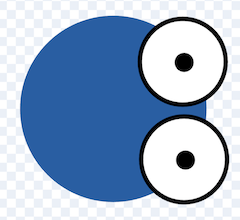
Create a new sprite called “head” and have the snake head pointing to the right.
Step 2: Start the snake moving
when green flag clicked
go to x: [0] y: [0]
point in direction [90]
forever
    move [5] steps
end
- Can you make the snake move faster or slower?
- Can you make the snake start moving in a different direction?
- Can you start the snake from the corner of the screen?
Step 3: Add controls to change the direction of the snake
This code should go at the end of your forever loop:
if <key (left arrow v) pressed?> then
    point in direction [-90]
end
if <key (right arrow v) pressed?> then
    point in direction [90]
end
if <key (up arrow v) pressed?> then
    point in direction [0]
end
if <key (down arrow v) pressed?> then
    point in direction [180]
end
- Can you make it so the snake can’t turn to the left if it is facing right?
- Can you add the same behaviour for the other three directions?
Step 4: Draw a snake body sprite
Create a new sprite and draw a snake body. Then add another costume and draw another snake body with a different colour (VERY IMPORTANT!)
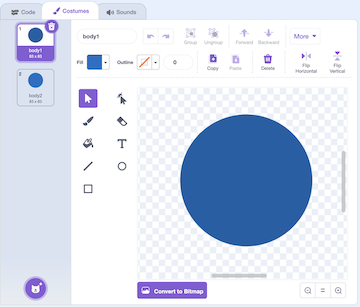
We need two different colours for the body so that we can make the hit detection work later on! The colours don’t have to be completely different - two similar shades is fine.
Step 5: Add a new variable called “snake length”
First add a variable called “snake length”. Next, add this code to the snake body sprite:
when green flag clicked
set [snake length v] to (0.2)
hide
Step 6: Clone the snake body
Back in the snake head sprite, add this block at the end of your forever loop.
create clone of (snake body v)
Step 7: Make the snake body move
Now inside the snake body sprite, add this code to show the first costume then the second costume:
when I start as a clone
go to (snake head v)
go to [back v] layer
switch costume to (body1 v)
show
wait (0.2) seconds
switch costume to (body2 v)
wait (snake length) seconds
delete this clone
When you test the game now, you should see a 2-colour snake body following the head.
Step 8: Draw some food for the snake
Next we want to add some food for the snake to eat. You could draw some food or choose one of the existing sprites.

Step 9: Setup the food sprite
You should create a variable called “food” and add this code to the food sprite:
when green flag clicked
set [food v] to (0)
hide
create clone of (myself v)
This will hide the food, then create a clone of it (which will also start as hidden).
Step 10: Let the snake eat the food
Also in the food sprite, add this code:
when I start as a clone
go to (random position v)
show
repeat until <<touching (snake head v)?> or <touching (snake body v)?>>
end
change [snake length v] by (0.1)
change [food v] by (1)
create clone of (myself v)
delete this clone
This will put the food in a random position, and when the snake eats the food, it will:
- make the snake longer,
- add 1 to the food variable,
- create a new piece of food
- and delete the food that has just been eaten
Step 11: End the game if the player loses
Lastly, we want the game to end if the snake touches the edge of the screen, or if it touches its own body. This is where the 2 colour body comes in handy!
Back in the snake head sprite, add this to the end of the forever loop:
if <<touching (edge)> or <touching color (#086fc5)?>> then
    stop [this script v]
end
The colour that you select in the touching color check should be the colour of the second snake body costume.
Challenges
- Can you add sound effects when the snake eats the food, or when the snake dies?
- Can you add some different food?
- Can you make some food make the snake go faster or slower?
- Can you keep track of the high score?
- Can you add a Game Over screen?